Connect Claude to NetSuite: MCP Setup, Security & Best Practices
Gus Larson
Kaelan Guetschow
NetSuite recently introduced the Model Context Protocol (MCP) within its system. This feature allows for integrations and secure interactions between AI models and the NetSuite platform. Although it is possible to integrate NetSuite with other AI services, Claude.AI has a native NetSuite connector that is already built into its platform that streamlines the initial setup. This blog post will cover how to connect Claude to NetSuite using the NetSuite AI Connector.
Prerequisites/Requirements:
Administrator Access in NetSuite.
Server SuiteScript enabled in NetSuite.
OAUTH 2.0 enabled in NetSuite.
REST Web Services enabled in NetSuite.
A Claude.ai account.
Claude & NetSuite Integration Strategy Questions to Ask the Business:
Before setting up Claude with NetSuite, it is important to think about a few questions:
How does the business intend on using the integration?
Do we want to pull only metadata within NS to Claude?
Do we want to utilize an external agent to create, modify, or delete any NetSuite data?
Who in the business needs the integration access?
The answers to these questions will help you understand what permissions need to be updated for the integration and who will need to have access.
Part I: Install the MCP Standard Tools SuiteApp
The MCP Standard Tools SuiteApp is built for use with the NetSuite AI Connector. It includes a set of tools that let the user interact with NetSuite data through an AI model. This includes records, reports, saved searches, and making SuiteQL queries, all while using natural language prompts.
Login to NetSuite as an Administrator.
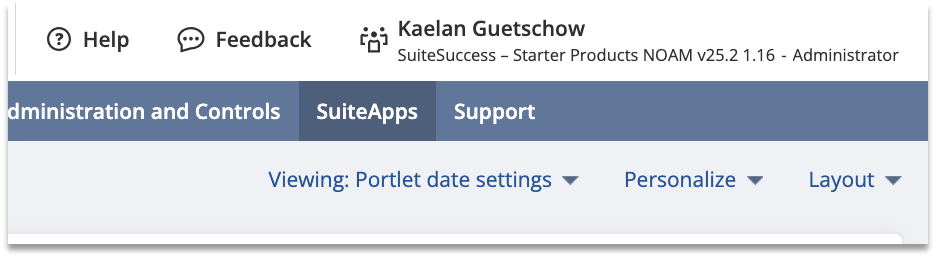
From the dashboard, select SuiteApps.
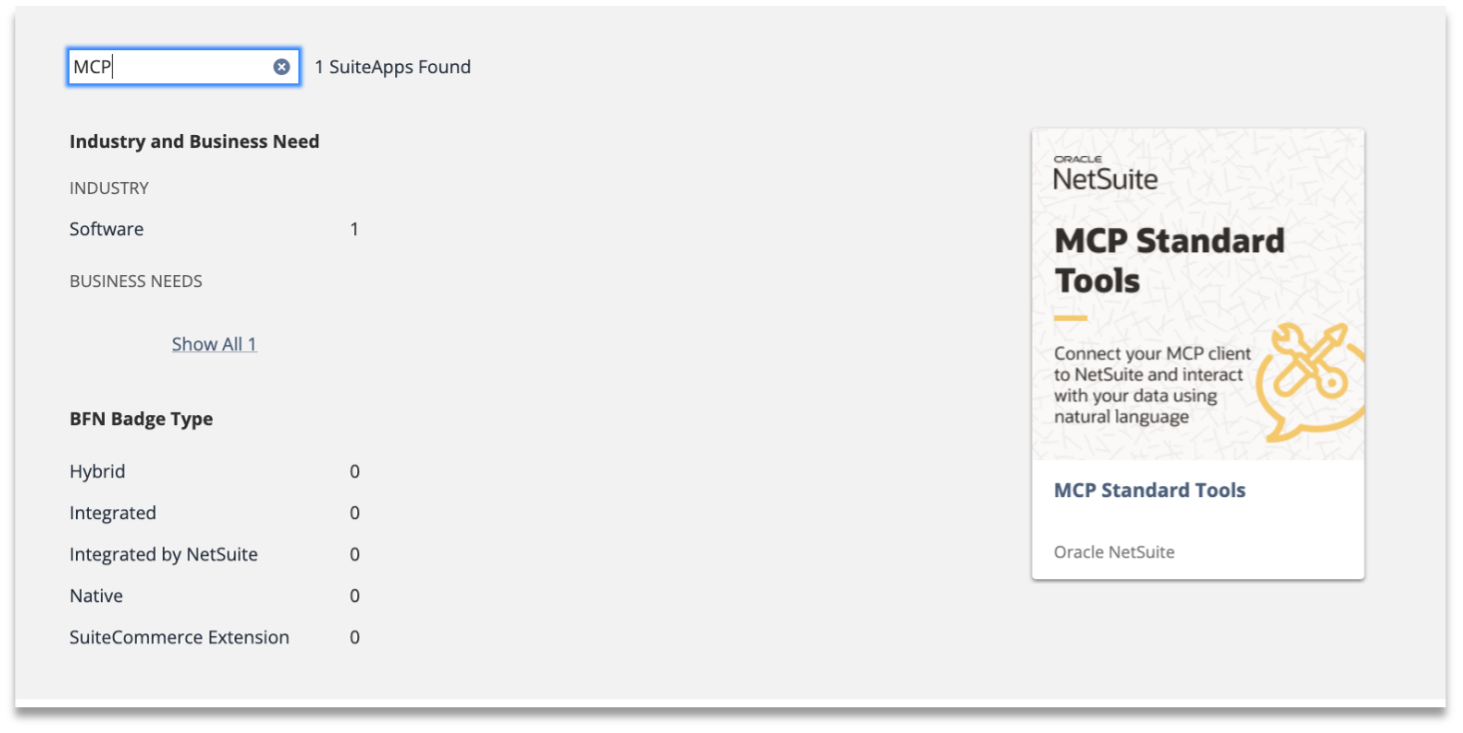
Search for MCP in the search bar. The MCP Standard Tools SuiteApp should appear in the results.
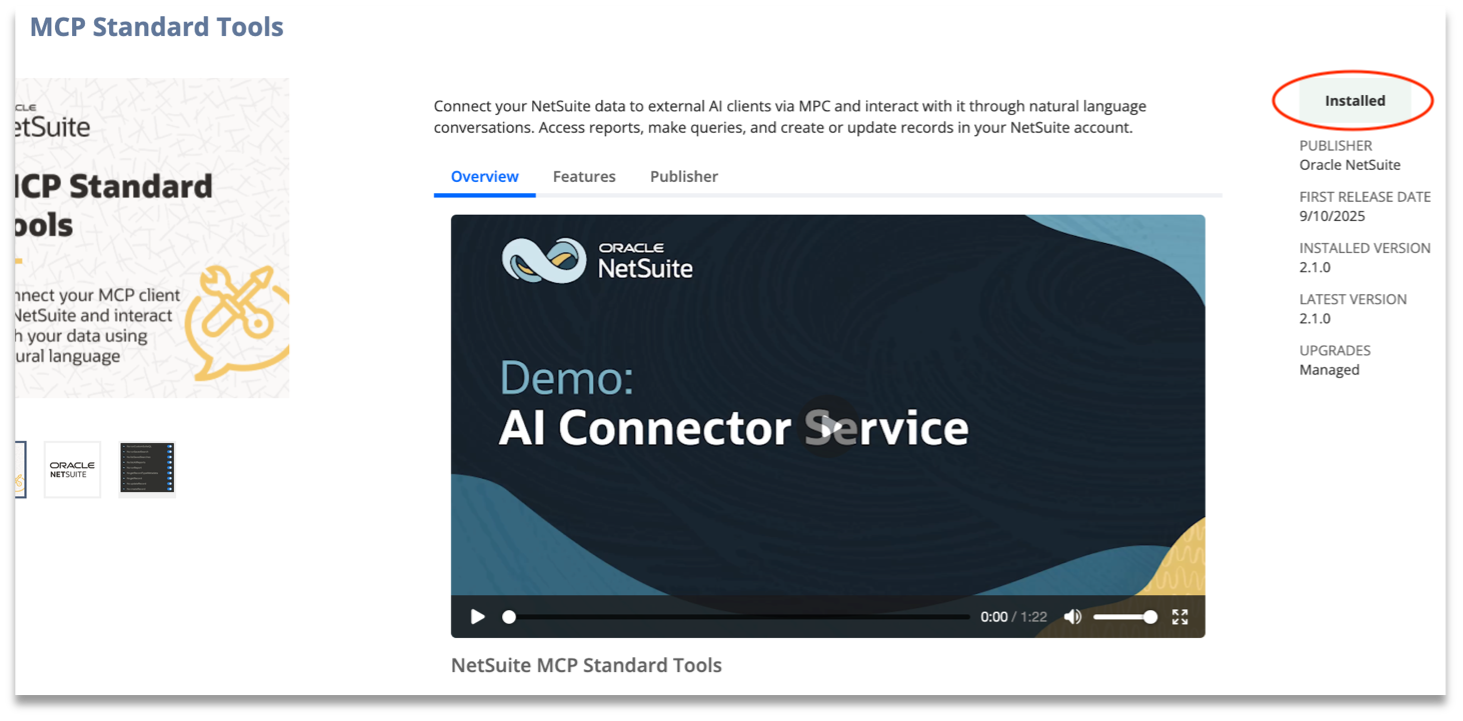
On the SuiteApp page, click Install.
Once the SuiteApp is installed, the install button will instead display as Installed.
Part II: Editing a User Role to Use with Claude
Note: Only roles that have the specific MCP permissions can connect to Claude. By default, no roles have these permissions. For security purposes, the Administrator role is also unable to be used.
Steps to add correct permissions to the role within NetSuite
Note: SAML Single Sign-on is not supported by the MCP Standard Tools SuiteApp. Users will need to authenticate with a native NetSuite login (email and password) rather than SAML SSO, or they will receive a permissions error.
Login to NetSuite as an Administrator.
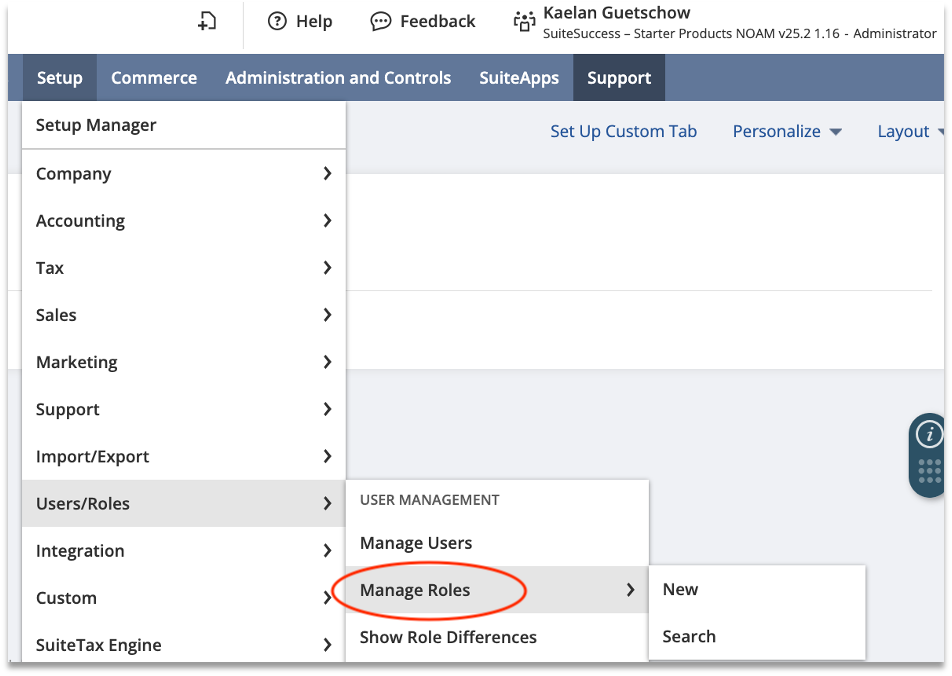
From the Dashboard, Navigate to Setup > Users/Roles > Manage Roles.
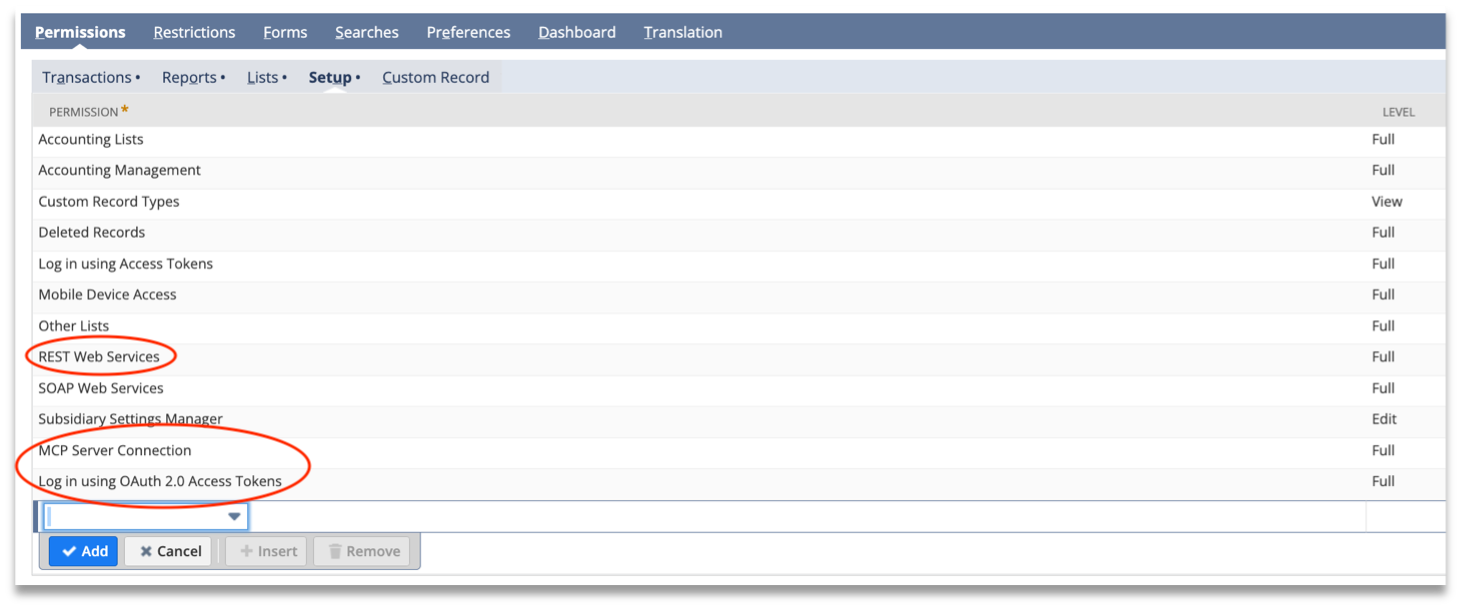
Once you have selected the role that you would like to connect to Claude, navigate to Permissions > Setup.
Add the MCP Server Connection
Add the Log in using OAuth 2.0 Access Tokens
Check if the REST Web Services permission is enabled. This permission allows Claude to create and delete data within the system.
Note: Since this permission enables the external AI agent within the integration, it is important that this permission is removed if you do not intend for Claude to create, modify, or retrieve record data within NetSuite.
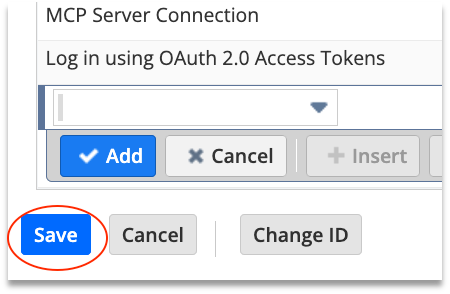
Once the permissions are set, click Save.
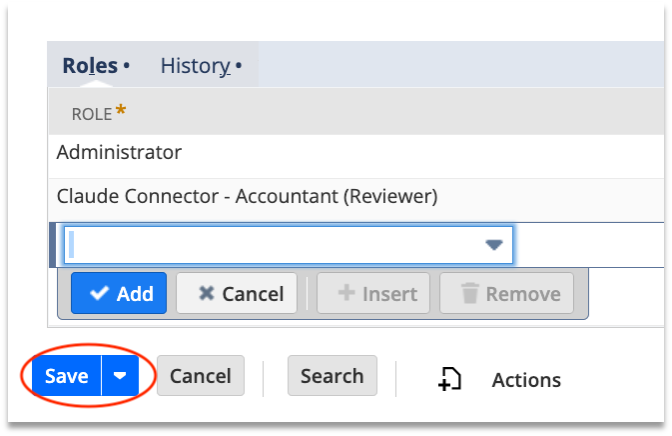
Navigate to the employee record that will be utilizing the newly modified role. Ensure that the role is assigned to the user.
Click Save.
Part III: Connecting Claude to NetSuite
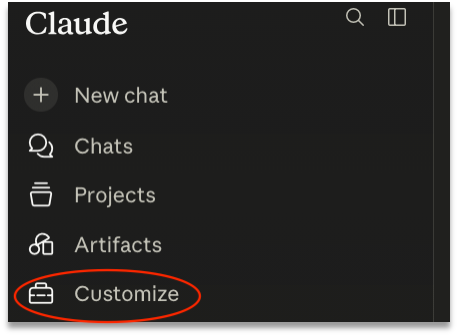
Login to Claude.ai and click Customize.
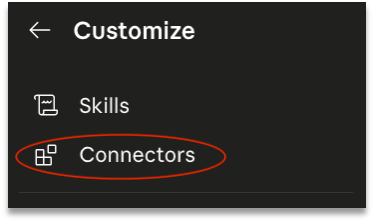
In the Customize menu, click Connectors.
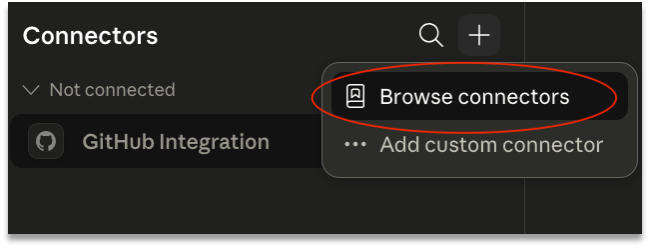
Next, click the plus sign and select Browse connectors.
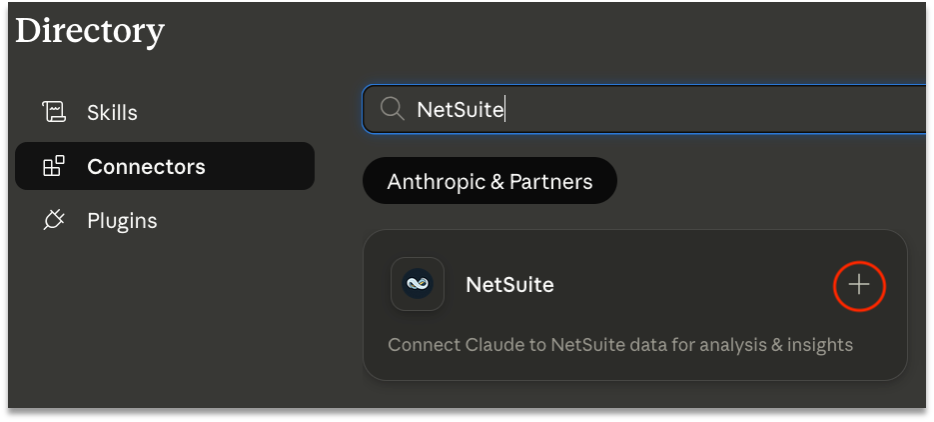
Type NetSuite in the search bar and then select the plus sign.
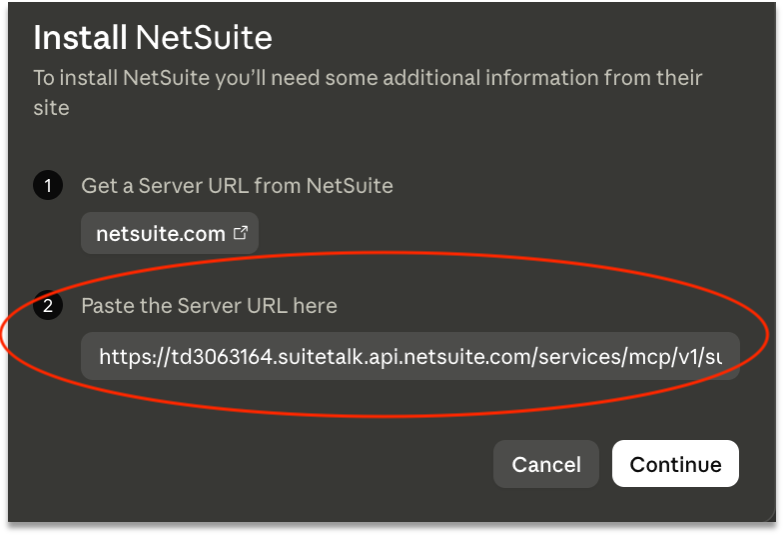
Paste your NetSuite server URL and click Continue.
The URL is: https://<accountid>.suitetalk.api.netsuite.com/services/mcp/v1/suiteapp/com.netsuite.mcpstandardtools
Note: You must use your unique NetSuite account ID for the connector to work properly. You can find this on the URL of your NetSuite homepage.
Next, a new browser tab will open in NetSuite. Check that the correct role is chosen and click Continue.
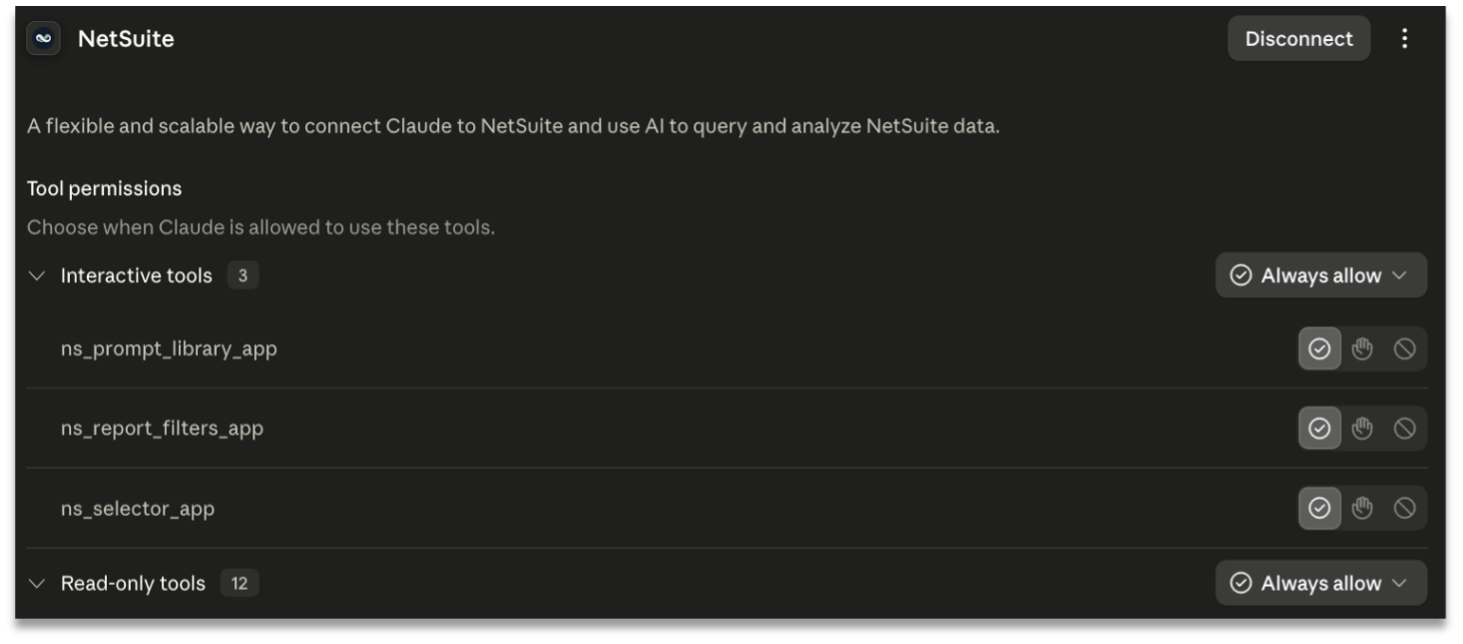
If the connection was successful, it will bring you back to Claude and display the list of tools available within Claude.ai. These tools each have their own permission level that can be set within Claude.
Note: Selecting the permission levels in Claude will only affect how the tools are used within Claude. Nothing supersedes the permissions on the role within NetSuite. See the screenshot below as an example.
Part IV: Risks and Risk Mitigation Steps
Like any other AI model, Claude is not a perfect system and should not be relied on as such. Although it can be a useful tool, it is important to understand the risks involved when using it with your NetSuite system.
Key risks of using Claude or any other AI model include:
Hallucination – occurs when the AI model generates data that is incorrect or completely made up.
Prompt Injection – occurs when a bad actor disguises a prompt within a file, such as a PDF, an email, or even a NetSuite record that is then processed by an AI model. This can make the AI agent perform unintended actions — such as modifying or deleting data — under the authenticated user’s account without their knowledge.
Key steps in mitigating risk:
Ensure the REST Web Services permission is disabled for users that should not be creating, modifying, or deleting data within NetSuite. This permission is what controls the Claude AI agent and should be used in very limited cases.
Always validate results that are generated by Claude. (You can do this by adding the prompt “Give me the step-by-step instructions within this current role on how I validate the information you gave me within the NetSuite UI.”)
Grant the MCP permissions only to users who need them. By default, no roles have these permissions enabled.
Consider separate roles customized to each user. This ensures that no user will have access to data or NetSuite permissions that they should not have.
Test everything in a Sandbox first, especially when building out roles that have the REST Web Services permission enabled.
Only enable the MCP tools that match the business’s use case and needs.
Part V: Performance Considerations
The MCP connector shares your account’s concurrent request limit with all other integrations. A single Claude prompt can generate multiple API requests behind the scenes, so heavy AI usage can compete with other integrations running in parallel and vice versa.
Steps to mitigate performance issues:
Review your account’s overall concurrency limit and be aware of how much has already been allocated to other integrations. The AI connector will only have access to whatever remains unallocated.
If you receive a “Too Many Requests” error, ask Claude to retry the request.
Be mindful of running complex Claude queries during peak integration hours.
Part VI: Best Practices
The following best practices can help minimize errors and improve the accuracy of results when using Claude with your NetSuite account.
When asking Claude to create records in NetSuite, always instruct it to set the External ID on the record. This helps prevent duplicate records and makes tracking easier.
Do not use Claude to generate financial reports via SuiteQL. NetSuite’s standard financial reports apply important business rules that SuiteQL cannot replicate. Use saved searches or standard reports instead.
When possible, ask Claude to use a saved search or standard report before resorting to SuiteQL.
Ask Claude to include direct links in its results so users can quickly navigate to the relevant records, transactions, or reports in NetSuite.
Clearly explain what you expect Claude to do in your prompt, including what tools it should use, and what format you want the answer in.
When referencing a specific report or saved search in your prompt, include its name so Claude can find it accurately.
Tell Claude to use real data from your NetSuite account rather than sample or example data.
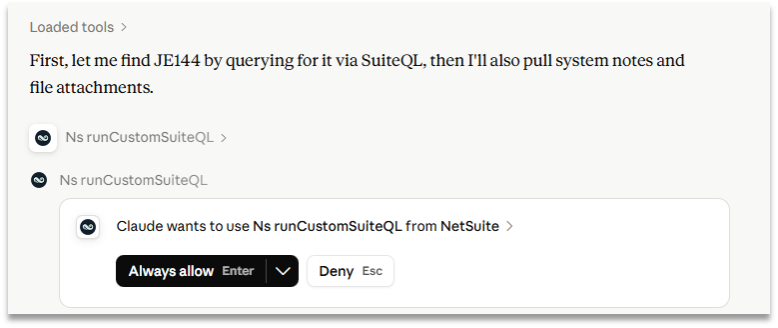
Review not just Claude’s final answer but the steps it took to get there — including which tools it called and what data it retrieved — since inaccuracies can appear at any step in the process.
How TAC Can Help
Connecting Claude to NetSuite can be a very effective way to convert natural language prompts into powerful, data-driven insights. However, if implemented incorrectly, the risks can be very severe. TAC works closely with clients to design and implement AI in a way that mitigates risk and maximizes positive outcomes. If your organization is evaluating if it’s time to connect Claude to NetSuite, the team at TAC can help.
Our combined experiences in diverse industries provide us with unique insights allowing our NetSuite Consultants to provide solutions to multifaceted problems.It has been our experience that often times people look for the easiest solution instead of facing the problems head-on. This creates manual workaround and loss of man hours that contribute to increased labor costs to resolve systematic problems.
Request a demo
Fill out the form below and our team will be in touch shortly.