

Handling returned payments and voided transactions correctly in NetSuite is critical for maintaining clean financial records, accurate accounts, receivable balances, and audit‑ready books.
When a payment is returned by the bank — whether due to non‑sufficient funds (NSF), an ACH rejection, or a processing error — many teams are tempted to simply delete or modify transactions. However, that approach can create reconciliation issues and poor audit trails. NetSuite provides a best‑practice approach using reversing journal entries and proper transaction handling that preserves the integrity of your financial records.
This guide walks NetSuite administrators and finance users through the recommended process to:
- Reverse a returned customer payment
- Reopen the original invoice correctly
- Charge the customer an NSF fee if needed
- Void bill payments properly using reversing journals
Following this process ensures your system remains audit‑compliant while keeping customer balances accurate.
System Setup: Recommended Accounting Preferences
Before processing returned or voided transactions, make sure NetSuite is configured to handle voids using reversing journal entries. This ensures all reversals maintain a clear audit trail.
Navigate to:
Setup > Accounting > Accounting Preferences
Under the General subtab, enable the following option:
- Void Transactions Using Reversing Journals
It is also recommended to enable:
- Set Reversal Variance Date EqualToThe Reversing Journal Date When Voided Transaction Is In A Closed Period
These settings ensure NetSuite automatically creates reversing entries rather than altering historical transactions. Create a reversing journal entry by clicking the Void button on the following transactions: Check, Bill Payment, Payroll Liability Payment, Customer Refund, Tax Payment, and Tax Liability Check.
When you check this preference, you can no longer void the following transactions: sales order, estimate, cash sale, invoice, return authorization, cash refund, and credit memo. You can, however, always uncheck the preference when you need to void those transactions and recheck it.

If you are looking to recover non-sufficient funds (NSF) charged to the bank back to the customer, you will need to also ensure you have the item set up as well as the GL Account that will be your income account for the fees.
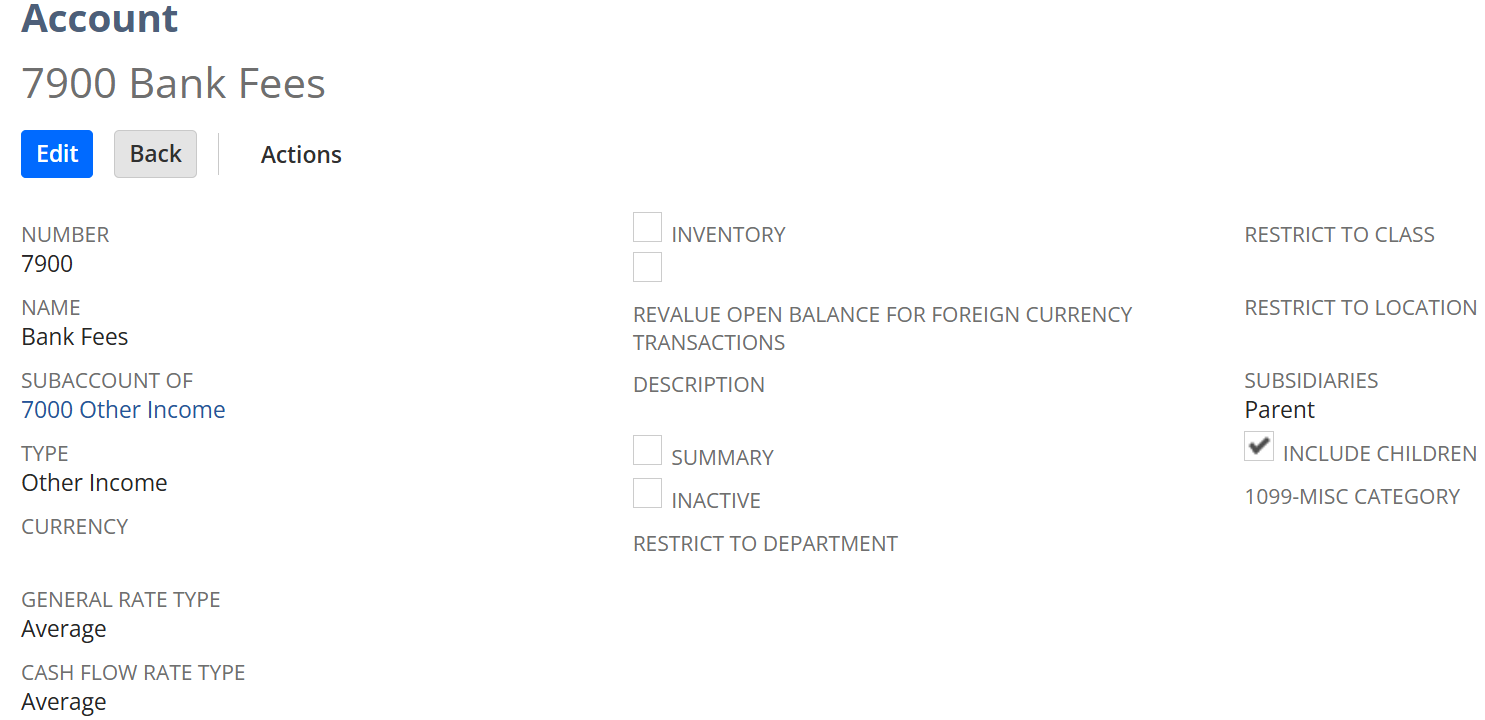
Item Setup: Creating New Returned Check Non-sufficient funds item
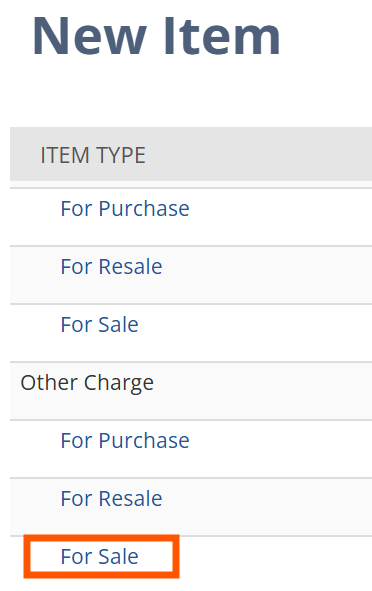
To create the new Returned Check Non-sufficient funds item, you will go to Lists > Accounting > Items > New and select the Other Charge for Sale Item type
Make sure that you have the Item Name, Display Name, Base Price (if it is the same each time) Tax Schedule, and Income Account (the G/L Account setup in previous steps)
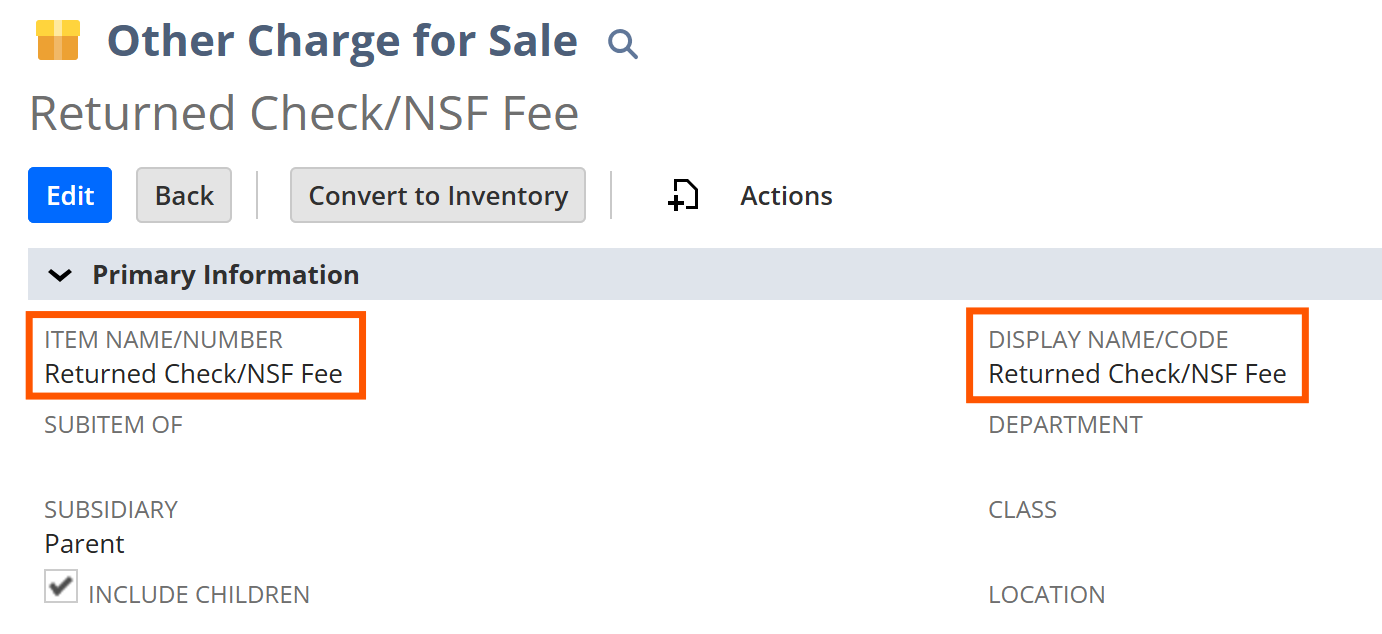

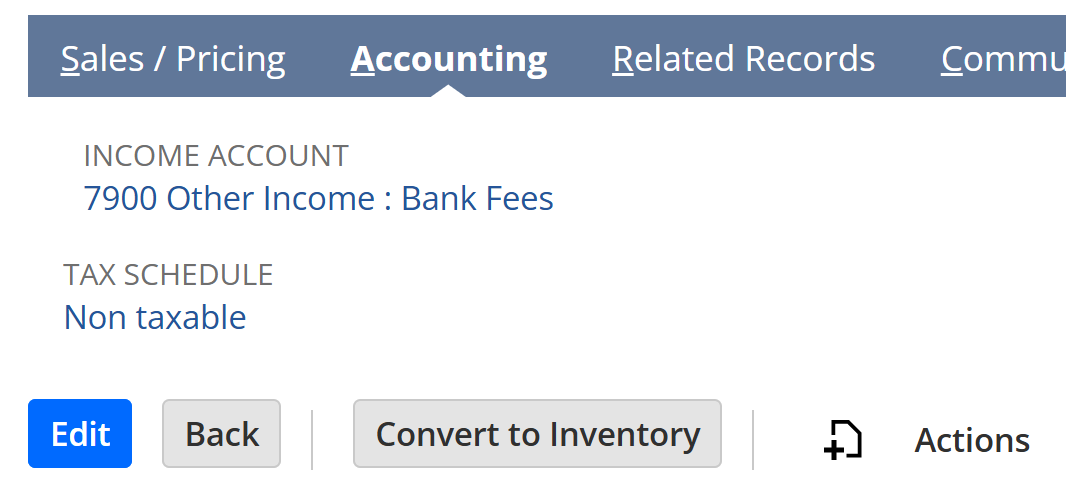
Returned Customer Payment: Steps to Rectify a Returned ACH/Wire/Check on a Customer Payment in NetSuite
Section 1:
Creating Reversing Journal Entry and Applying it to the Original Customer Payment. This section applies to all types of payments.
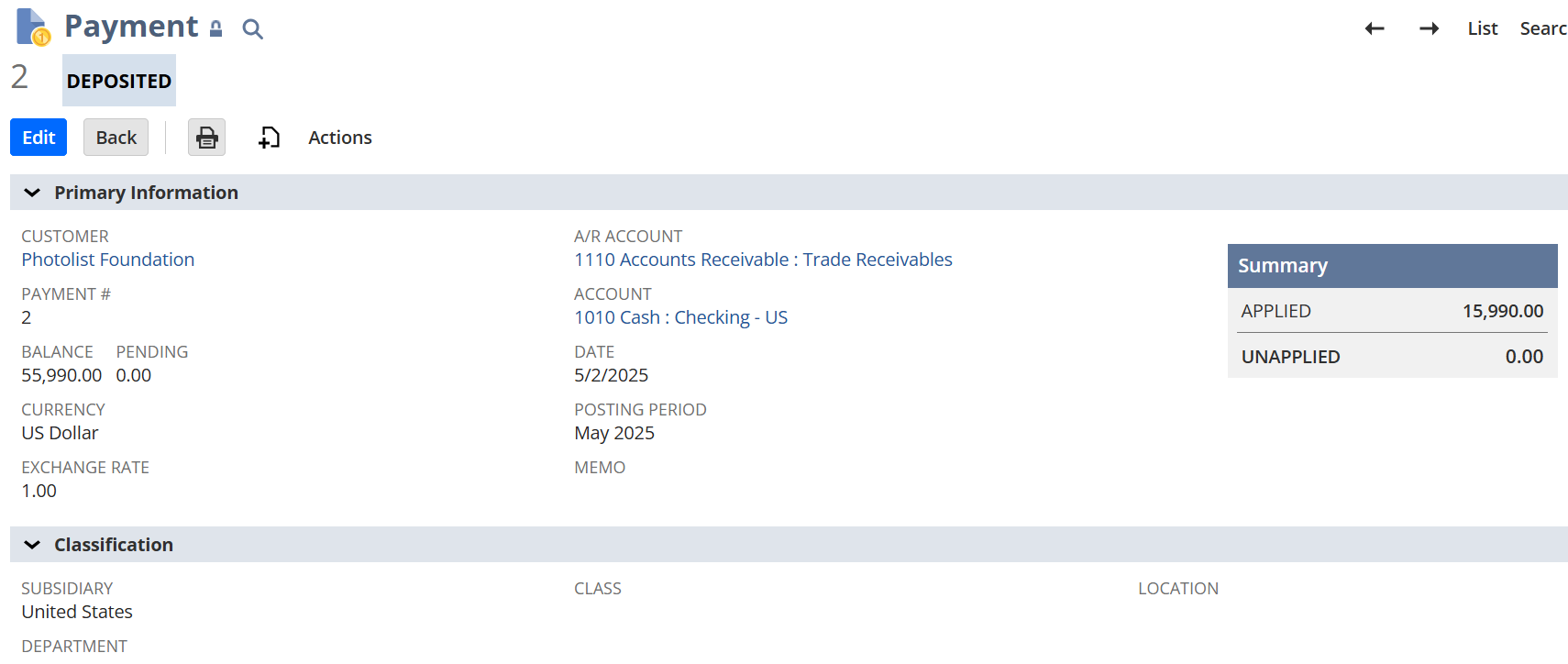
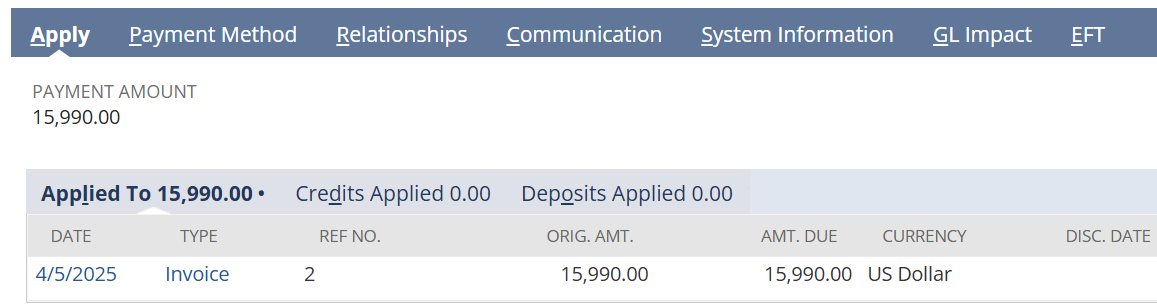
Step 1: Find NS Customer Payment Transaction that was applied to the invoice and view the G/L Impact
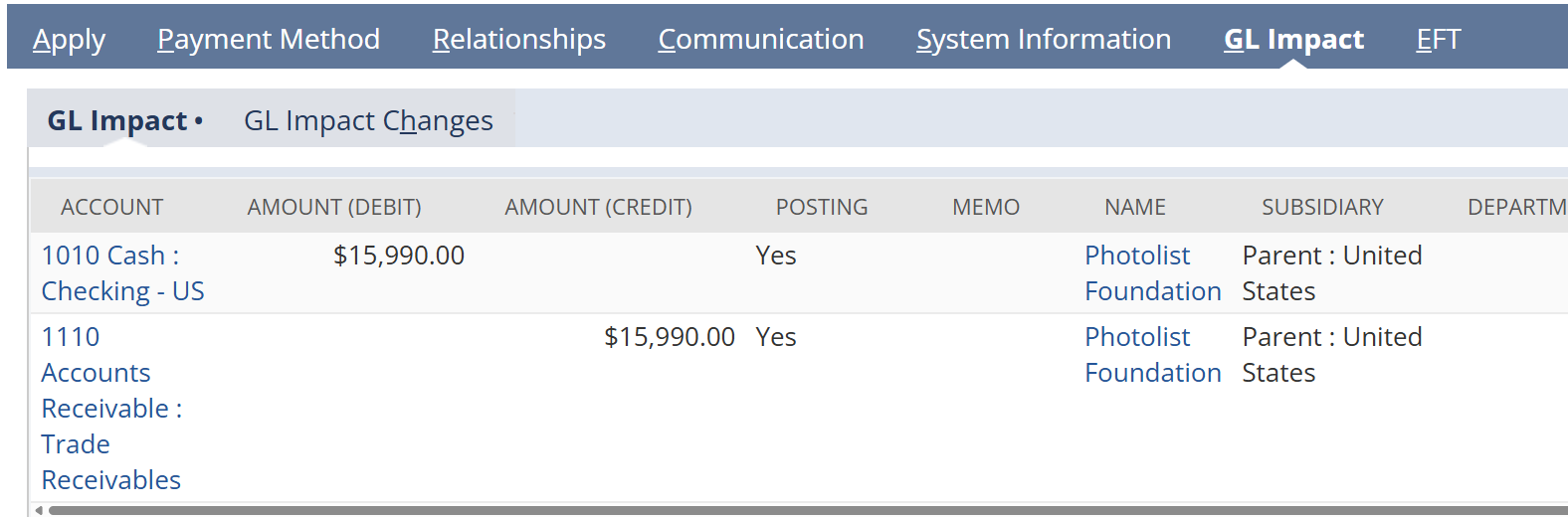
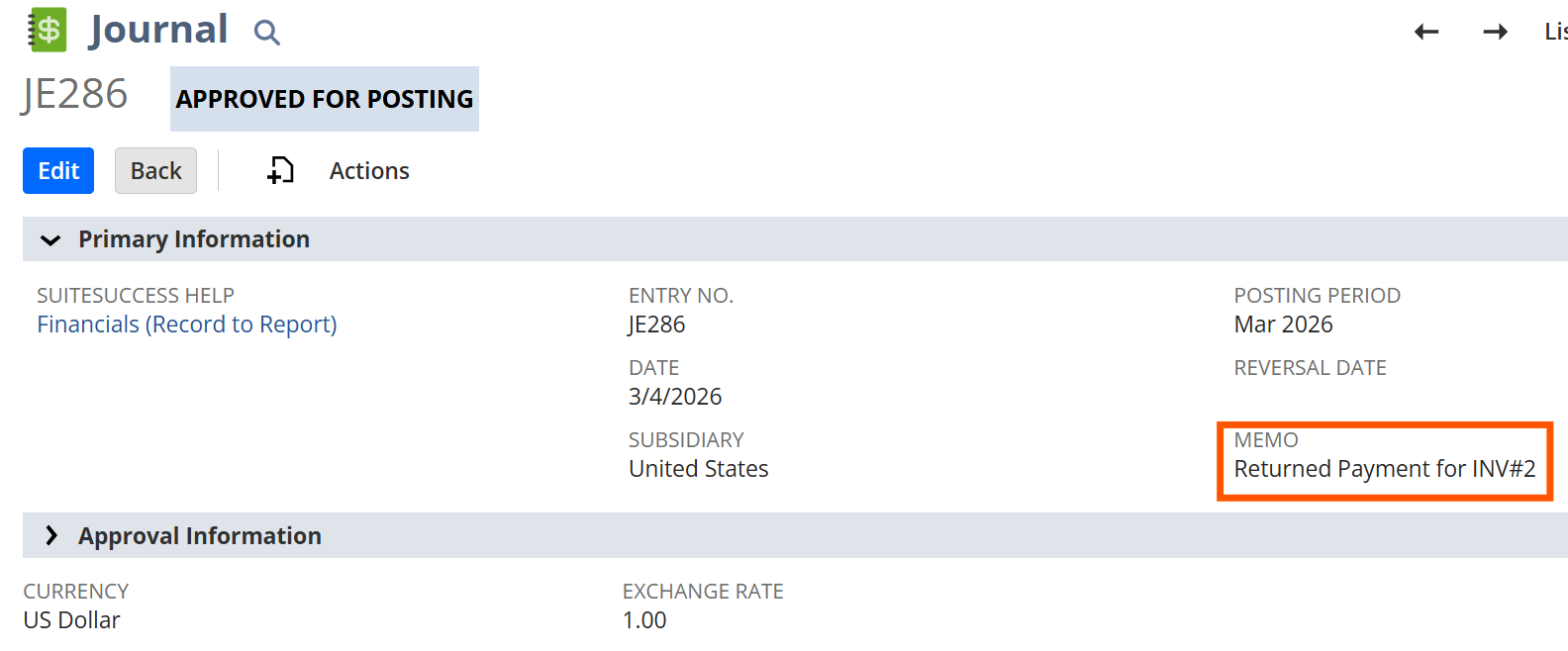
Step 2: Create a standalone Journal Entry Reversing the G/L Impact of the payment. You will do the following:
- Credit the Bank Account Payment was Deposited into
- Debit the A/R Account and add the customer to the name section
- Make sure there is a proper memo with the correct description for clean audits
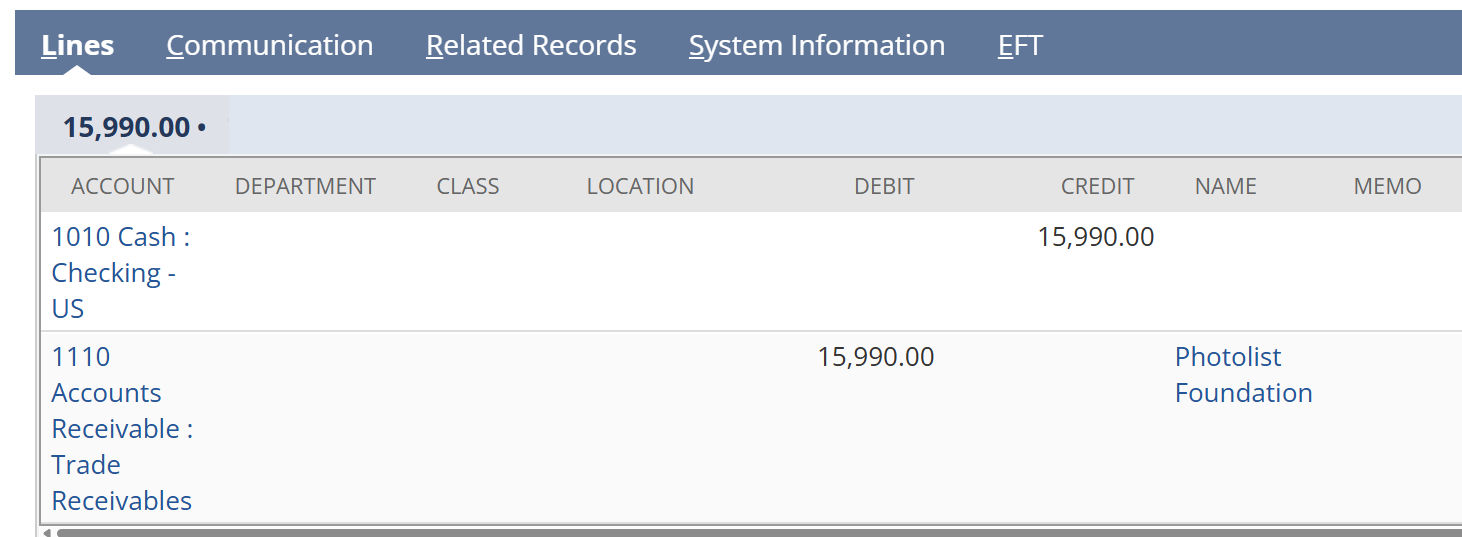
Step 3: Edit the Payment Record, Unapply the Original Invoice, and apply the newly created Journal Entry
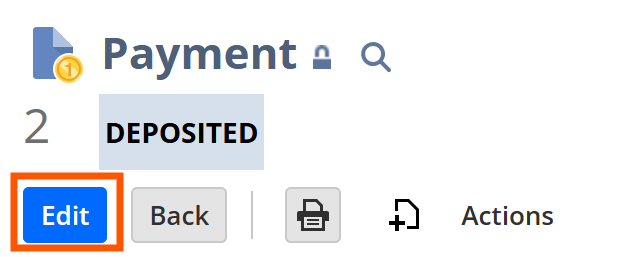

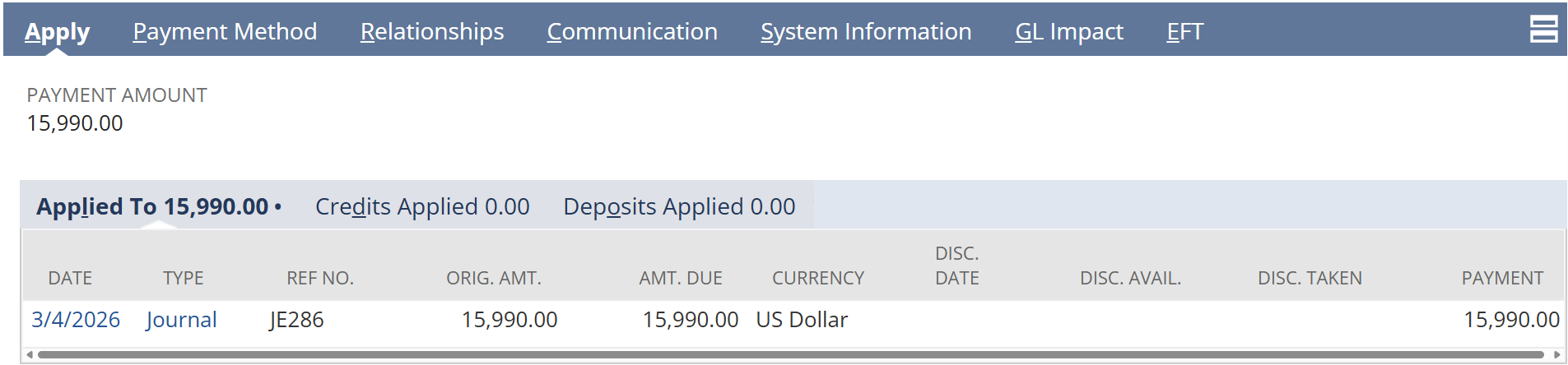
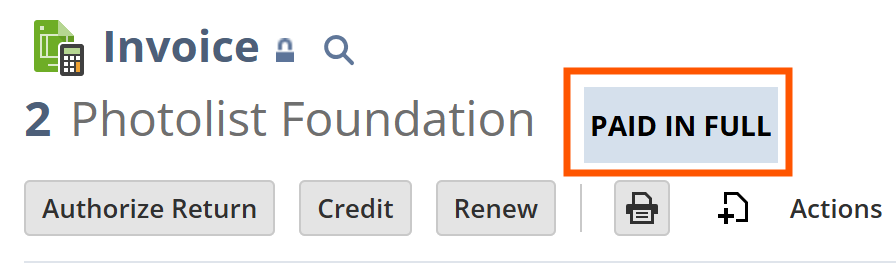
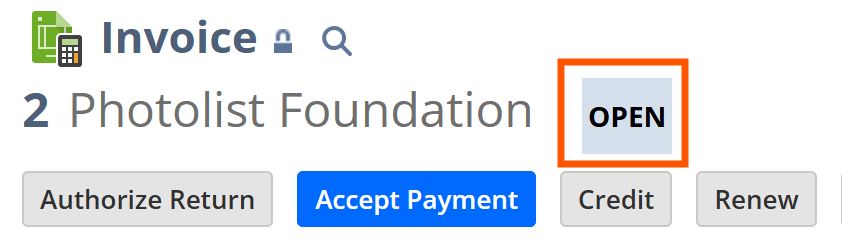
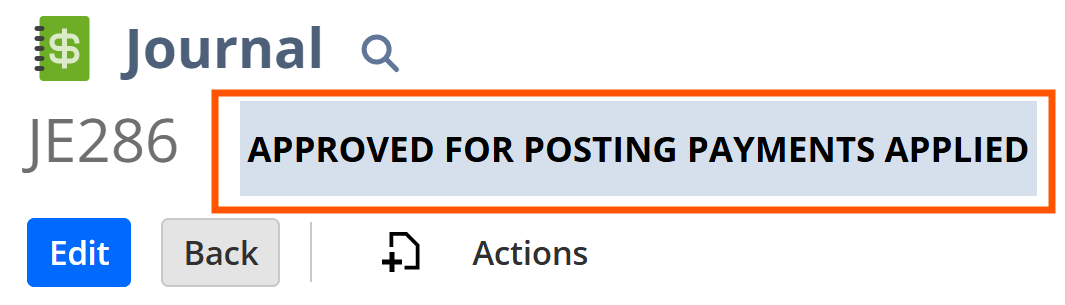
The Invoice will go from Paid in Full status, to Open, and the Journal Entry will have the Payments Applied Status
Section 2:
Step 1: Go to Customers > Sales > Create Invoices or go to the Customer Record, hover over the Create New option (the page with the plus sign symbol) and click Invoice

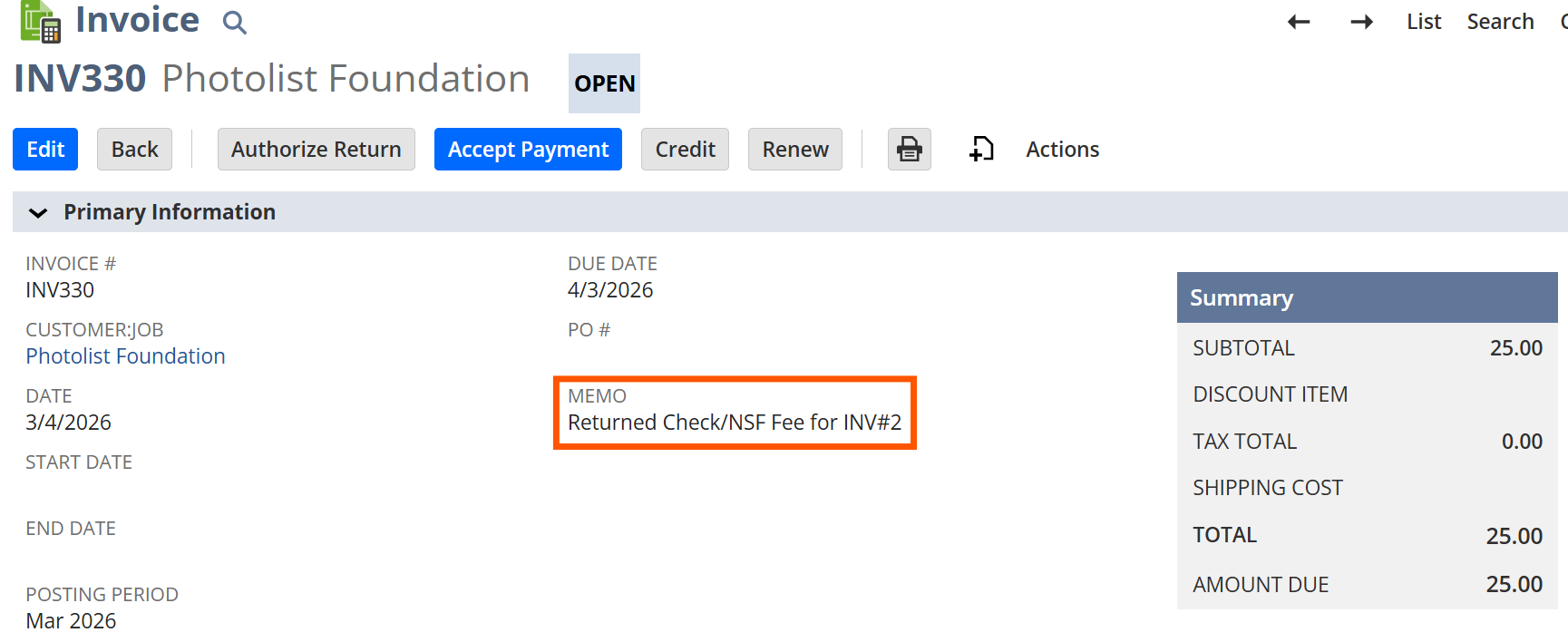
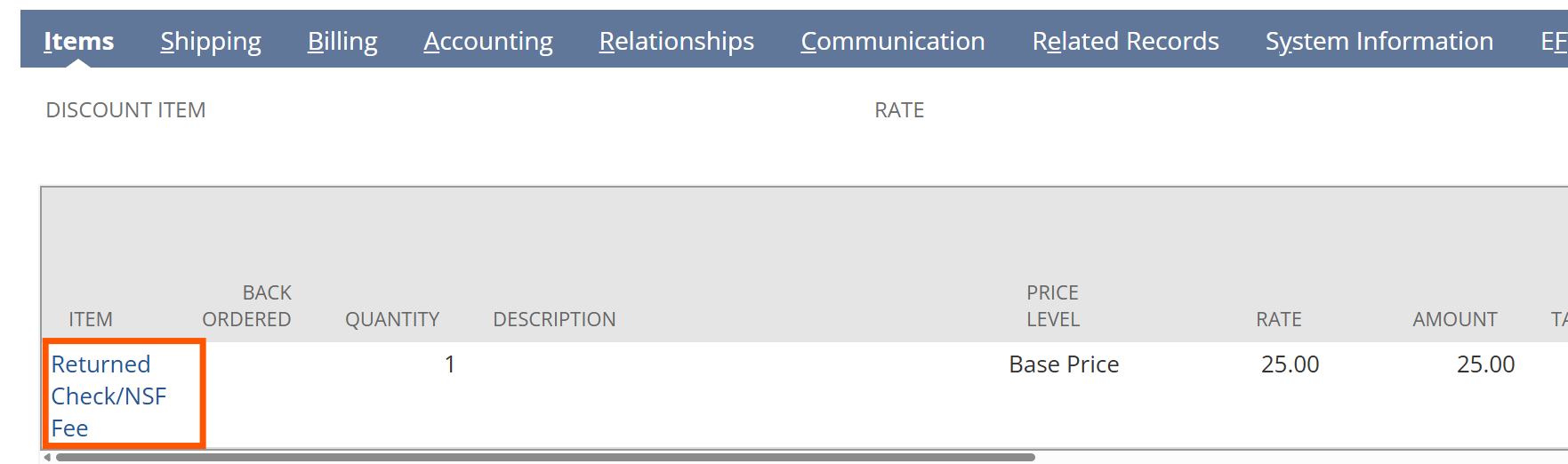
Step 2: Create a new invoice and add the Returned Check/NSF Fee item that was created in the previous steps. Be sure to include a clear memo describing the returned payment and associated fee for audit and customer reference. Once completed, the invoice can be sent to the customer so they can settle both the original outstanding invoice and the additional NSF fee.
Section 3:
Void a Bill Payment (Checks, ACH, or Wires)
This section explains how to properly void a bill payment in NetSuite—whether made by check, ACH, or wire—so the system automatically creates a reversing journal entry and reopens the original bill for payment while maintaining a clean audit trail.
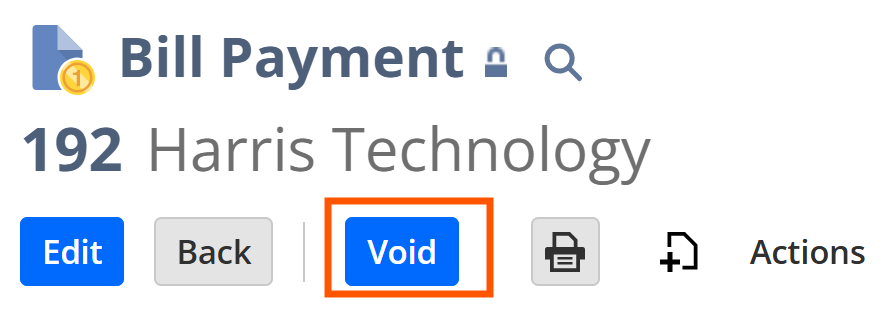
Step 1: Find the original Bill Payment Record. There will be a void button, click the button.
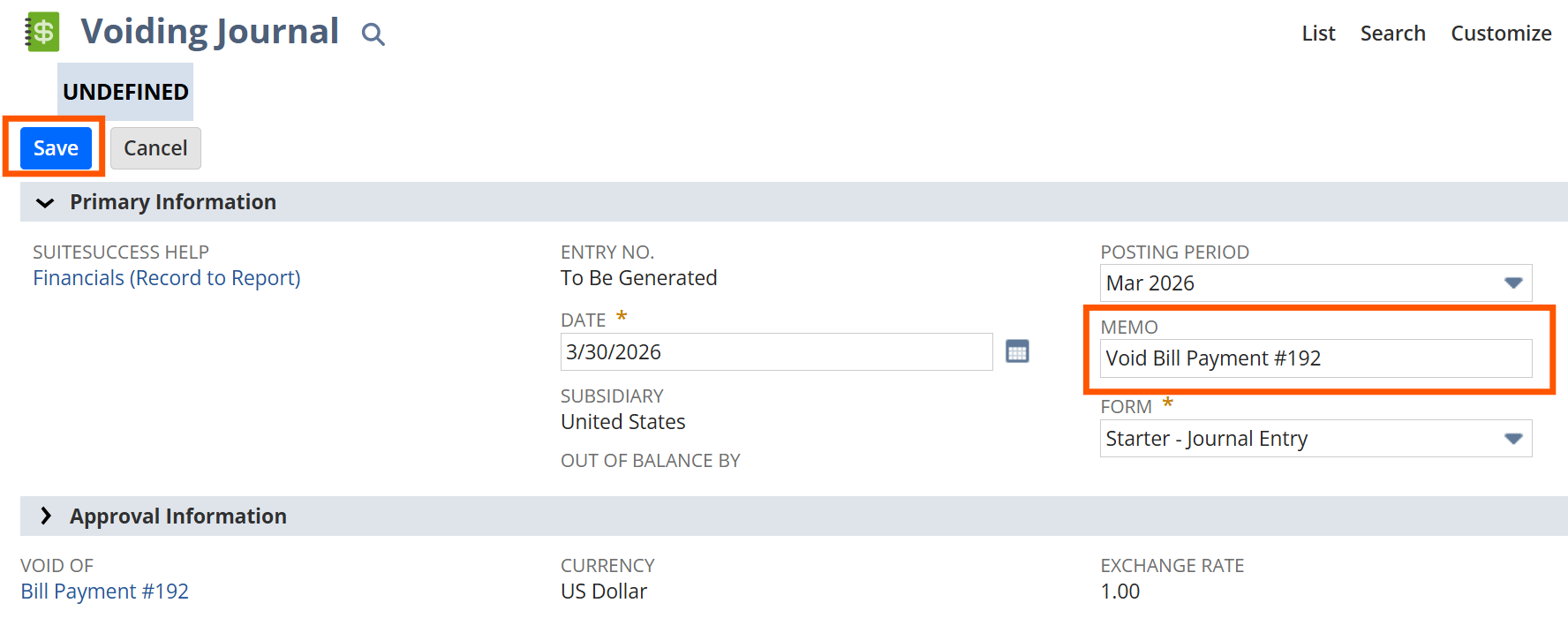
Step 2: An automatic reversing journal entry will populate. Add clear memo description in the reversing journal, click save.
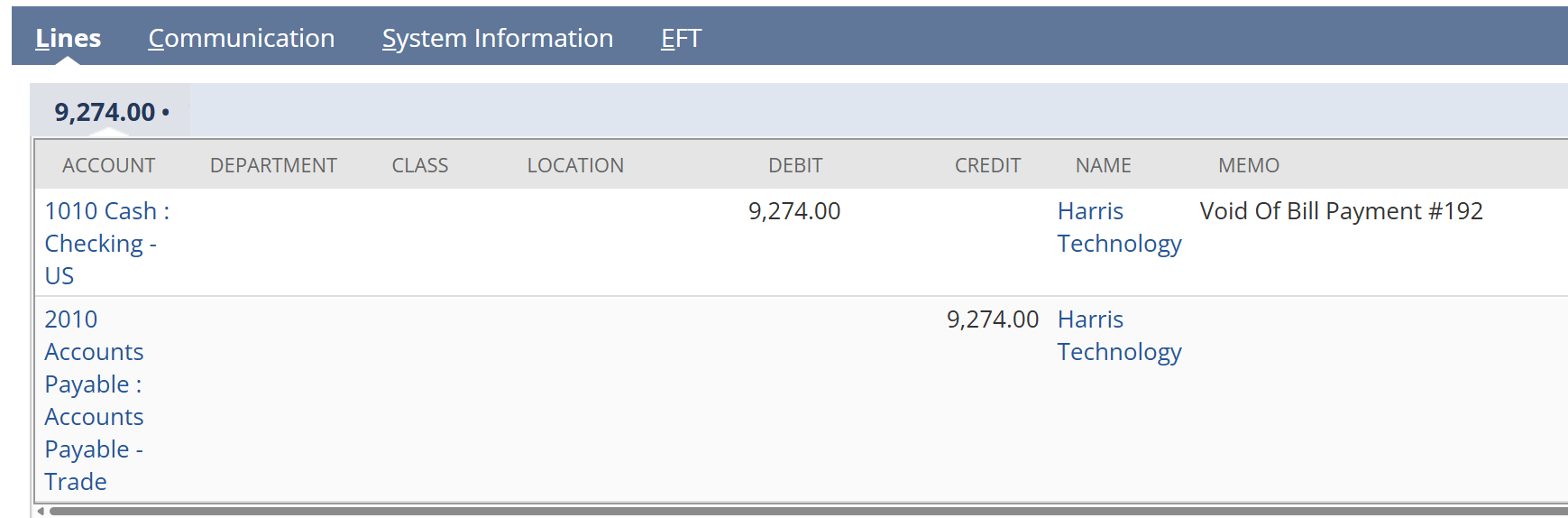
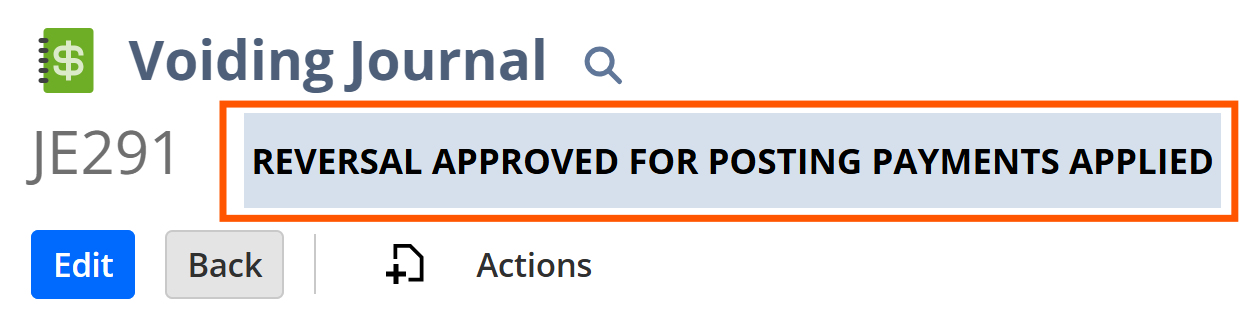
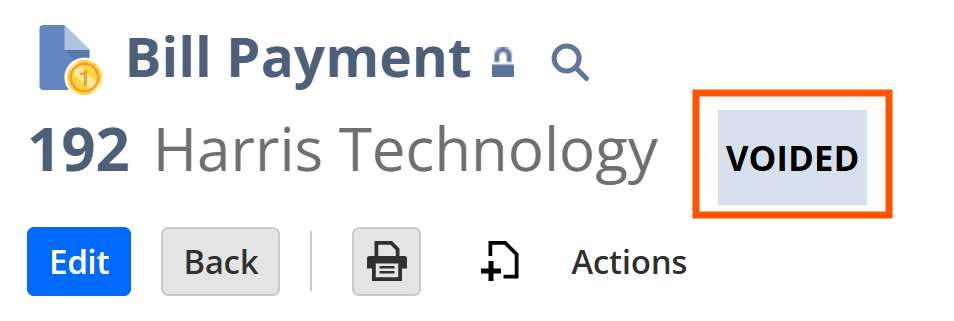
Step 3: Once saved, the voiding journal will automatically apply to the bill payment and the bill payment will be listed as a status of voided with the void date being the date of the journal date.
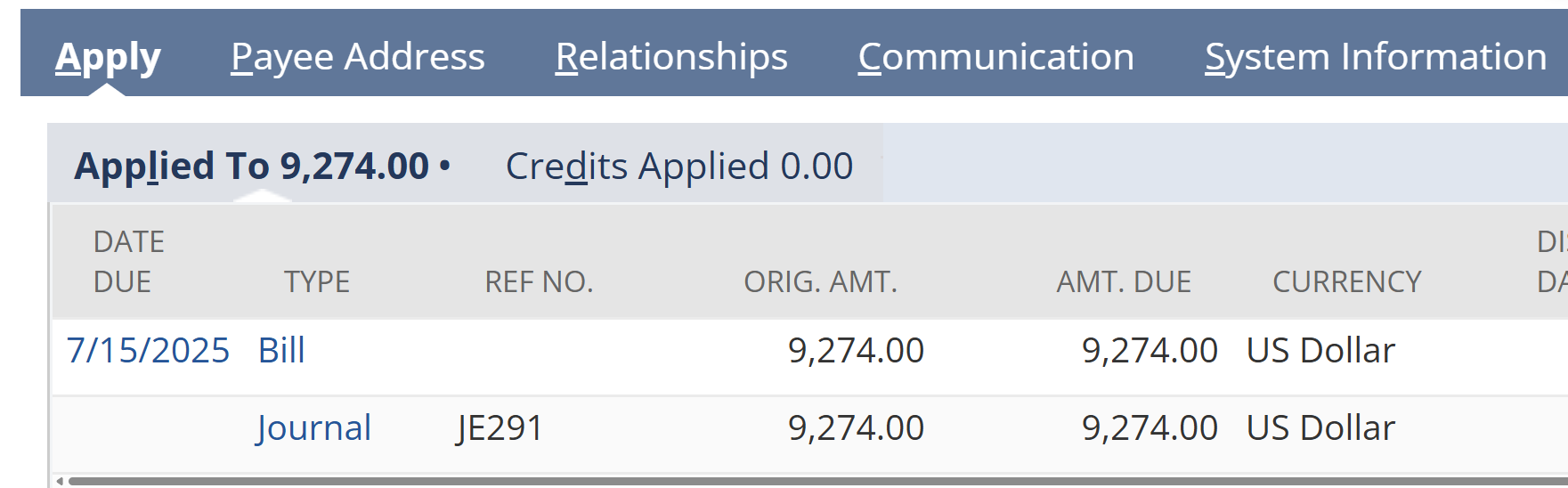
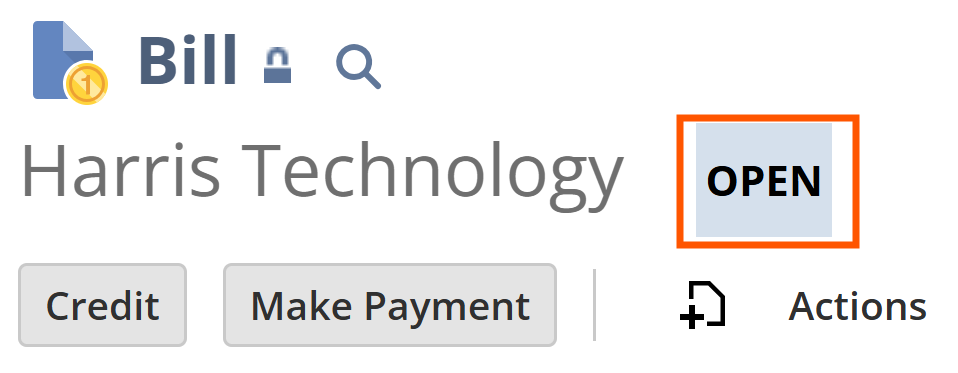
Step 4: The Original Bill will go from Paid in Full status to Open status, and the Make Payment button will become available again.
How TAC Can Help
Using reversing journal entries instead of deleting or modifying transactions protects the integrity of your financial records and simplifies reconciliations. Following this structured process allows your accounting team to correct returned payments while maintaining a complete audit trail inside NetSuite.
If your organization is looking to improve NetSuite financial processes, implement best practices, or needs help with optimization, support, or a new NetSuite implementation, the team at TAC Solutions Group can help. Our consultants specialize in helping companies get the most out of their NetSuite investment.


