


What the LLM Module Does
Common ways people can put it to work:
- Drafting email content
- Creating transaction memos that actually say something
- Condensing long internal notes into a quick summary
- Producing item descriptions without writing twenty templates
- Light tagging or simple categorization based on text
It’s not a replacement for real scripting. Your validations, field logic, permissions, and workflow rules still belong in code. The LLM is best when it’s filling in the “wordy” part, the section that’s meant to be understandable rather than rigid.
Example Scenario: Generating a Better Sales Order Memo
					/**
 * @NApiVersion 2.1
 * @NScriptType UserEventScript
 */
define(['N/record', 'N/llm'], (record, llm) => {

    const beforeSubmit = (context) => {
        log.debug('context.type', context.type);
        // if (context.type !== context.UserEventType.CREATE) return;

        const newRecord = context.newRecord;

        const customer = newRecord.getText({ fieldId: 'entity' });
        const total - newRecord.getValue({ fieldId: 'total' });

        const prompt = `
                Create a short memo for a sales order. Including Customer: ${customer}
                and Total Amount: ${total}
                Keep it concise and clear.
                    `;

        try {
            const response - llm.generateText({
                prompt: prompt,
                maxTokens: 100
            });

            newRecord.setValue({
                fieldId: 'memo',
                value: response.text
            });

        } catch (e) {
            log.error('LLM Error', e);
        }
    };

    return { beforeSubmit };
});
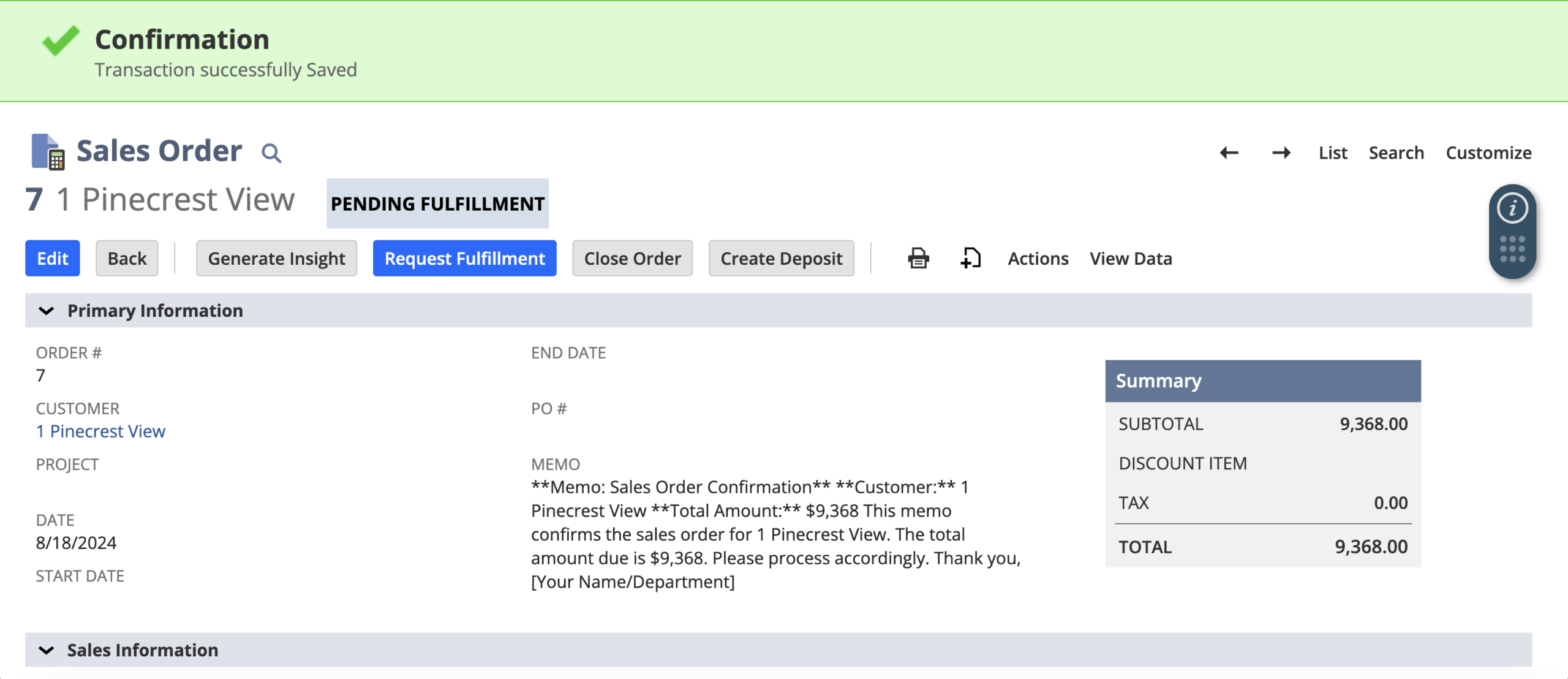
Why This Helps on Real Implementations
In a real NetSuite build, everything is rarely clean enough to fit into neat if/else branches. Users enter inconsistent data. Requirements change after go-live. Edge cases pile up, then someone asks for “just one more variation.” Strict logic can handle it, but it often becomes brittle and unpleasant to maintain.
That’s where the LLM module can slot in nicely. Instead of stacking more conditions to cover every wording difference, you can craft a prompt that adapts to the data you feed it. You get flexibility without turning the script into a patchwork of special cases.
And the usability piece is bigger than it sounds. Better memos, clearer descriptions, and readable notes reduce friction for the teams living in these records all day.
A Few Things Worth Knowing Before You Start
What are tokens, and why do they matter?
Tokens are essentially how the LLM measures text. Both your prompt and the response are broken down into tokens. Longer prompts and longer responses mean more tokens are used. When you set maxTokens, you are controlling how long the response is allowed to be.
In practical terms, keeping tokens low helps in two ways: responses stay concise, and performance stays predictable. If you leave responses open-ended, you will eventually get outputs that are longer than you actually need.
How many tokens do you get?
That hinges on your NetSuite setup plus any caps Oracle sets for the service: no universal figure fits every account. So wisest path? Craft prompts lean, aim for brief expected replies.
Is the LLM module enabled by default?
Yes, the module is available by default as long as the Server SuiteScript feature is enabled in your account. If you are not seeing the N/llm module, it is usually a sign that Server SuiteScript has not been enabled yet rather than the LLM feature itself being unavailable.
Are there other useful parameters besides prompt and maxTokens?
Yes, depending on the API version, you may have access to additional parameters that influence how the response is generated. These can include things like controlling randomness or adjusting how focused the output is. Even if you do not use all of them right away, it is worth knowing they exist, especially if you want more consistent or more creative responses later on.
If you want the full breakdown of what is available, Oracle’s documentation is the best reference:
https://docs.oracle.com/en/cloud/saas/netsuite/ns-online-help/article_1014032554.html
Practical Tips
DOs
- Write prompts that are clear and specific
Say what you want. If you need two sentences, state that. If the tone should be professional and neutral, include it. The cleaner the instruction, the less cleanup later. - Keep token limits under control
Set a sensible maxTokens so responses don’t drift into long paragraphs you never asked for, and so you’re not burning resources for no gain. - Use it where language is naturally variable
Summaries, descriptions, suggestions, rewriting, these are the sweet spots. If you find yourself creating multiple templates for the same type of text, it’s probably a candidate. - Add a fallback so the process doesn’t break
Wrap calls in try/catch. If the response fails or comes back unusable, your script should still finish the transaction with a default memo or safe placeholder. - Test prompts against real records
Prompts can behave differently depending on the messiness of actual data. Run it through a variety of customers, totals, and note styles before pushing to production.
DON’Ts
- Don’t use it for logic that must be exact
Generated output can vary. Avoid using it for calculations, approvals, or validation decisions where consistency is non-negotiable. - Don’t send sensitive info casually
Only pass what you truly need. Treat prompts like data leaving your script boundary, and be deliberate about what record details you include. - Don’t hammer it in bulk jobs without planning
Repeated calls inside scheduled scripts or large batch processes can hit performance constraints and governance limits fast. - Don’t assume formatting will always be perfect
If the output needs to fit a structured field or follow a strict style, validate it. Sometimes you’ll need to trim, sanitize, or normalize the response. - Don’t skip prompt iteration
Expect to adjust your prompt. A small rewrite often produces a noticeably better result.
Practical Tips
DOs
- Write prompts that are clear and specific
Say what you want. If you need two sentences, state that. If the tone should be professional and neutral, include it. The cleaner the instruction, the less cleanup later. - Keep token limits under control
Set a sensible maxTokens so responses don’t drift into long paragraphs you never asked for, and so you’re not burning resources for no gain. - Use it where language is naturally variable
Summaries, descriptions, suggestions, rewriting, these are the sweet spots. If you find yourself creating multiple templates for the same type of text, it’s probably a candidate. - Add a fallback so the process doesn’t break
Wrap calls in try/catch. If the response fails or comes back unusable, your script should still finish the transaction with a default memo or safe placeholder. - Test prompts against real records
Prompts can behave differently depending on the messiness of actual data. Run it through a variety of customers, totals, and note styles before pushing to production.
DON’Ts
- Don’t use it for logic that must be exact
Generated output can vary. Avoid using it for calculations, approvals, or validation decisions where consistency is non-negotiable. - Don’t send sensitive info casually
Only pass what you truly need. Treat prompts like data leaving your script boundary, and be deliberate about what record details you include. - Don’t hammer it in bulk jobs without planning
Repeated calls inside scheduled scripts or large batch processes can hit performance constraints and governance limits fast. - Don’t assume formatting will always be perfect
If the output needs to fit a structured field or follow a strict style, validate it. Sometimes you’ll need to trim, sanitize, or normalize the response. - Don’t skip prompt iteration
Expect to adjust your prompt. A small rewrite often produces a noticeably better result.
When It Makes Sense to Use
Reach for the LLM module when:
- You need text that sounds natural and readable
- You want to improve customer-facing or internal clarity
- The alternative is a growing pile of templates and conditional wording
Avoid it when:
- You need repeatable, deterministic results
- A simple script already solves the issue cleanly and efficiently
When It Makes Sense to Use
Reach for the LLM module when:
- You need text that sounds natural and readable
- You want to improve customer-facing or internal clarity
- The alternative is a growing pile of templates and conditional wording
Avoid it when:
- You need repeatable, deterministic results
- A simple script already solves the issue cleanly and efficiently
Closing Thoughts
NetSuite’s LLM module isn’t something you plug into every script, and it shouldn’t be. Used carefully, though, it’s a solid tool for the places where standard scripting feels stiff, anywhere you’re trying to generate language that people actually want to read.
Starting small is the right move. Memos, email drafts, short summaries. Once you’ve lived with it for a bit, the natural use cases show themselves. Keep the LLM as a supporting piece, keep your rules and guardrails in code, and make your prompts intentional.
That’s where the value is, clean scripts, clear prompts, and realistic expectations. Done that way, the LLM module becomes a practical upgrade to a SuiteScript toolkit, not a gimmick.
How TAC Can Help
NetSuite’s N/llm module can unlock smarter, more readable automation, but getting it right takes more than dropping AI into a script. TAC Solutions Group helps businesses build practical LLM powered solutions inside NetSuite with the right prompts, safeguards, and scripting structure behind them. From transaction memos and email drafts to summaries and descriptions, we create AI assisted workflows that improve clarity, reduce manual work, and scale cleanly inside your NetSuite environment.