

If you’re still typing your NetSuite password every morning and then fumbling for your phone to grab a 2FA code, there’s a faster and honestly more secure option available now: passkeys. NetSuite added native passkey support for login, and as of 2026.2, you can also use a passkey in place of an authenticator app for two-factor authentication. Here’s what passkeys actually are, how to set them up, and a few things worth knowing before you roll this out to your team.
What a passkey actually is
A passkey replaces the “something you type” model of a password with “something you already have,” like your face, your fingerprint, or a hardware security key. Under the hood, passkeys use public key cryptography instead of a shared secret, which is why they’re resistant to phishing in a way passwords and even SMS codes are not. There’s no password to steal in a data breach because there’s no shared secret sitting on a server somewhere.
In NetSuite specifically, passkeys are available for every role, and they can be tied to a physical device (like a YubiKey) or a platform authenticator built into your device, think Face ID on an iPhone or Windows Hello on a laptop.
One important caveat before you get excited and ditch your password manager: NetSuite still requires you to remember your account password. Passkeys only cover the login process itself. You’ll still need your password for things like resetting 2FA, so don’t go changing it to something you’ll never remember.
Setting up a passkey
The process is straightforward and lives entirely in the Settings portlet on your Home page.
- Find the Settings portlet. By default it sits on the left side of your dashboard, though if you’ve customized your Home page it could be anywhere. If you can’t find it, check your portlet settings and add it back.
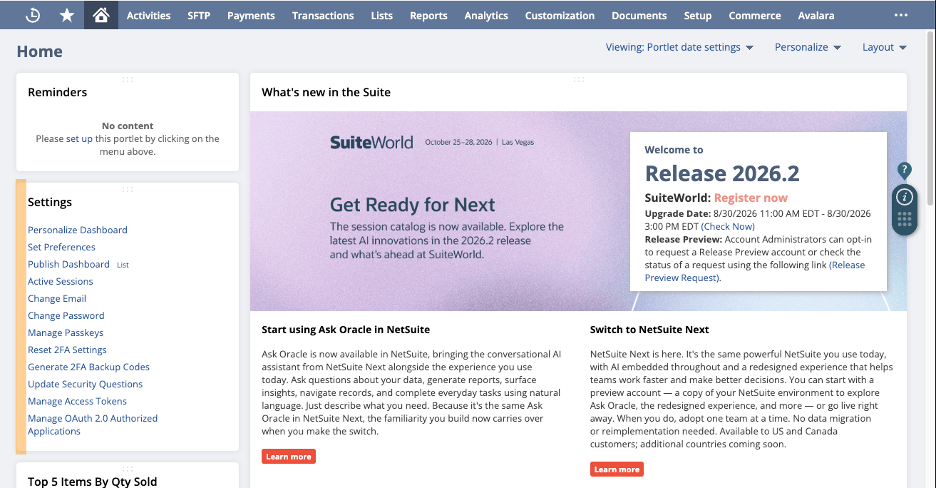
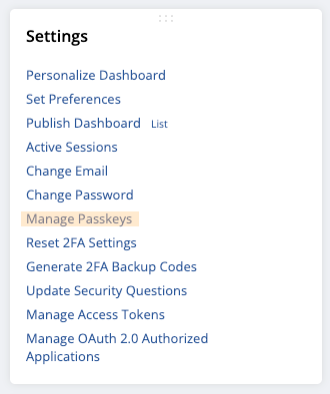
- Click Manage Passkeys. This opens a dedicated Passkeys page.
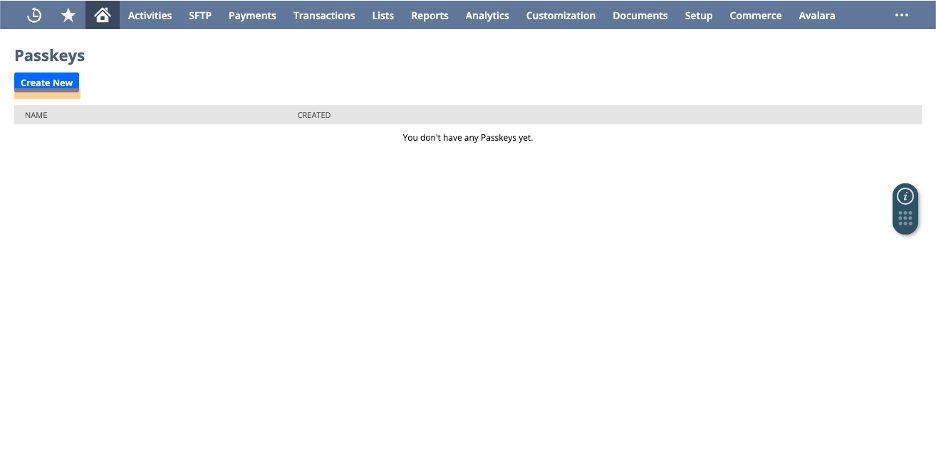
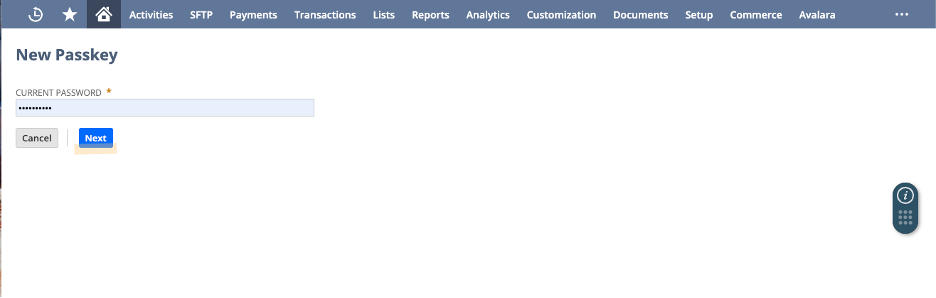
- Click Create New. This opens a page where you name your new passkey and confirm your password.
- Click Next. This is what actually kicks off the registration flow with whatever authenticator your browser or OS supports, biometric prompt, security key tap, or PIN.
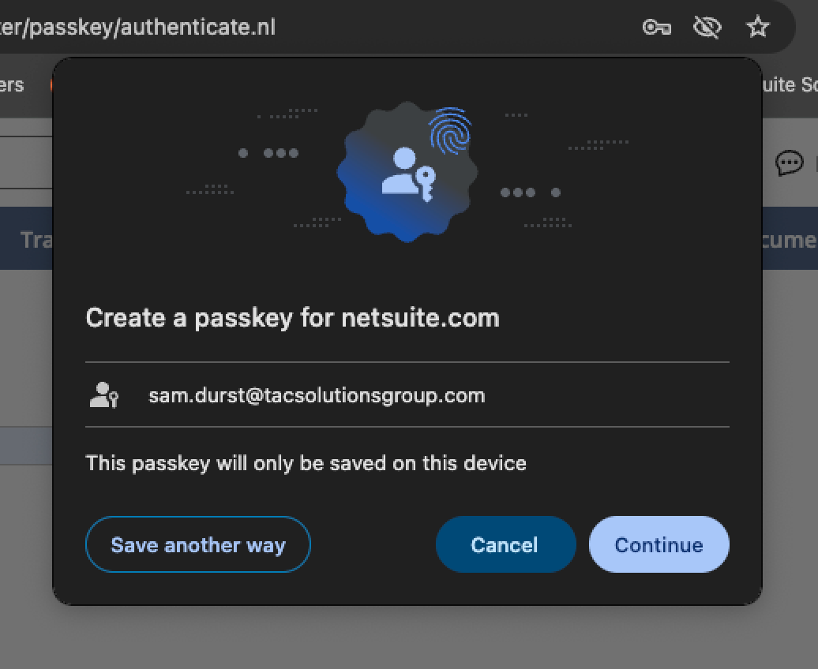
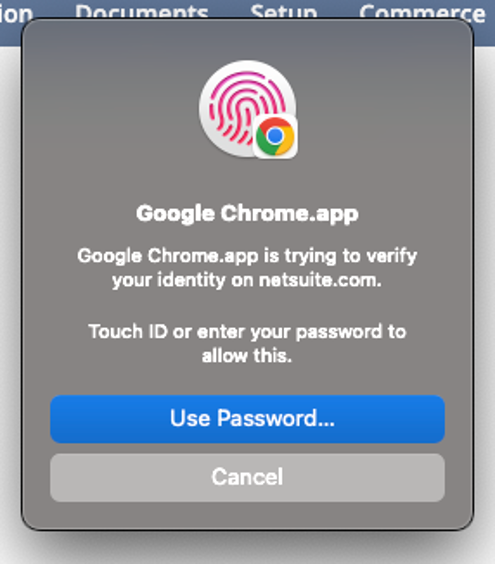
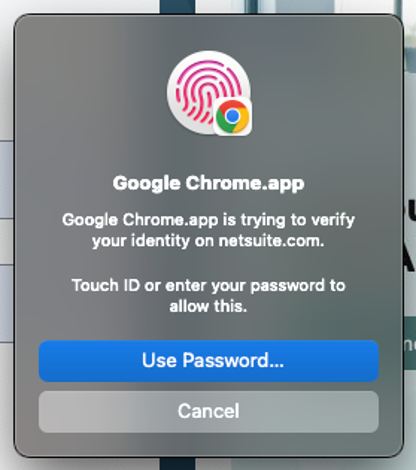
- Click Continue, then verify with Touch ID, Face ID, or your password. This is the actual authentication step, your OS or browser will ask you to confirm it’s really you before the passkey gets created.
- You’ll land back on the Passkeys page with a confirmation banner. Your new passkey shows up in the list, named after the browser and device it’s tied to (mine shows up as “Chrome on Mac”).
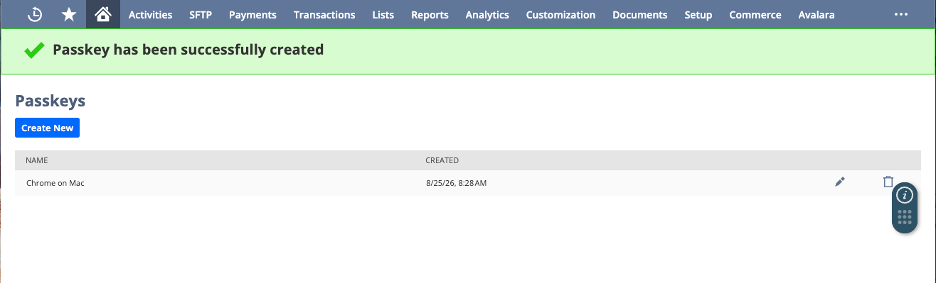
- From that same page, you can also edit or delete existing passkeys, which is useful if you get a new laptop or phone and want to clean up stale entries.
That’s it. No admin approval step required for an individual user setting up their own passkey for login.
Testing it at login
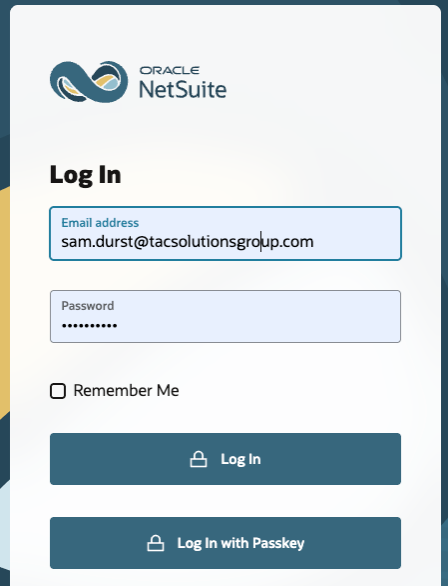
Once your passkey is registered, log out and try it. The NetSuite login page now shows a Log In with Passkey button below the standard email/password fields.
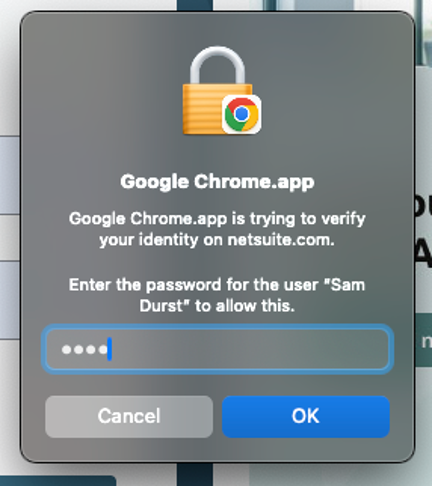
If you choose to enter your password instead of using biometrics (or your device doesn’t support them), you’ll get a fallback prompt to confirm the account you’re authenticating as.
A word on FIDO2 compliance
NetSuite’s documentation is emphatic about this, and it’s worth repeating here: always register a FIDO-certified passkey, ideally one that meets the FIDO2 specification. Not every “passkey-like” option out there is actually certified, and using one that isn’t can undermine the whole point of switching to passkeys in the first place. If you’re deciding between hardware keys for your team, stick to known FIDO2-certified vendors rather than whatever’s cheapest on Amazon.
Using passkeys for 2FA (2026.2 and later)
This is the part that will matter most for admins. Starting in 2026.2, users can substitute a passkey for an authenticator app when NetSuite prompts for a 2FA code. A few conditions apply:
- The passkey has to be FIDO2 compliant. Same rule as above, no exceptions.
- Your administrator has to leave the “Passkey as 2FA” feature enabled. If an admin disables it, 2FA reverts to the standard authenticator app flow for everyone.
- You’ll only be prompted for a passkey when NetSuite actually needs to generate a 2FA code, not on every single login.
In practice, this shows up as an extra option on the 2FA screen you’d normally see after entering your email and password. Instead of just a field for a 6-digit authenticator code, you’ll also see a passkey option, so you can verify with Touch ID, Face ID, or your security key instead of switching over to your phone.
There’s one operational quirk worth flagging to your users ahead of time so it doesn’t look like a bug: even if you’re using a passkey for 2FA, NetSuite will still ask for a code from your authenticator app roughly once every three months. This isn’t a glitch, it’s a deliberate check to confirm your 2FA setup is still functional in case you ever need to go through a 2FA reset. If you don’t warn people this is coming, expect a support ticket titled “NetSuite is asking me for a code again, is my account broken.”
Rollout considerations for admins
A few things I’d think through before pushing this org-wide:
- Don’t force it, but do promote it. Passkeys are opt-in at the user level right now, so this is more of a change management exercise than a configuration one. A short internal how-to (screenshots help) goes a long way.
- Decide your stance on the “Passkey as 2FA” feature early. If you’re in a regulated environment or your security team wants centralized control over 2FA methods, you may want to leave this disabled until you’ve evaluated it. If you’re comfortable letting individual users manage their own authentication method, turning it on reduces friction without weakening security, since FIDO2 passkeys are arguably stronger than TOTP codes anyway.
- Watch for device turnover. Passkeys tied to a physical device or platform authenticator don’t automatically follow the user to a new phone or laptop. Build a quick “register a new passkey” step into your device offboarding/onboarding checklist so nobody gets locked out.
Passkeys are a small setup lift for a real security upgrade, and NetSuite’s implementation is simple enough that there’s not much reason to hold off. If you manage a NetSuite instance, this is worth rolling into your next internal security refresh.
How TAC Can Help
Setting up a passkey for one user is simple. Rolling out authentication changes across an entire NetSuite environment can be a different story.
TAC Solutions Group can help you evaluate how passkeys fit into your existing NetSuite security strategy, configure Passkey as 2FA settings, review roles and authentication requirements, and build a rollout plan that makes sense for your organization.
We can also help establish onboarding and offboarding procedures for passkeys, prepare user documentation, troubleshoot authentication issues, and review your broader NetSuite access and security configuration.
Whether you’re looking to roll out passkeys across your organization or simply want a second set of eyes on your NetSuite security setup, our team can help make sure it’s configured correctly without creating unnecessary friction for your users.
Need help with NetSuite security or passkeys? Contact TAC Solutions Group to talk with a NetSuite expert.